

How to create a Confluence space in three steps
Share on socials
How to create a Confluence space: the easy three-step guide


Jump to Section
Jump to section
What is a Confluence space?
How to create a space
How to delete or archive a space
Space templates
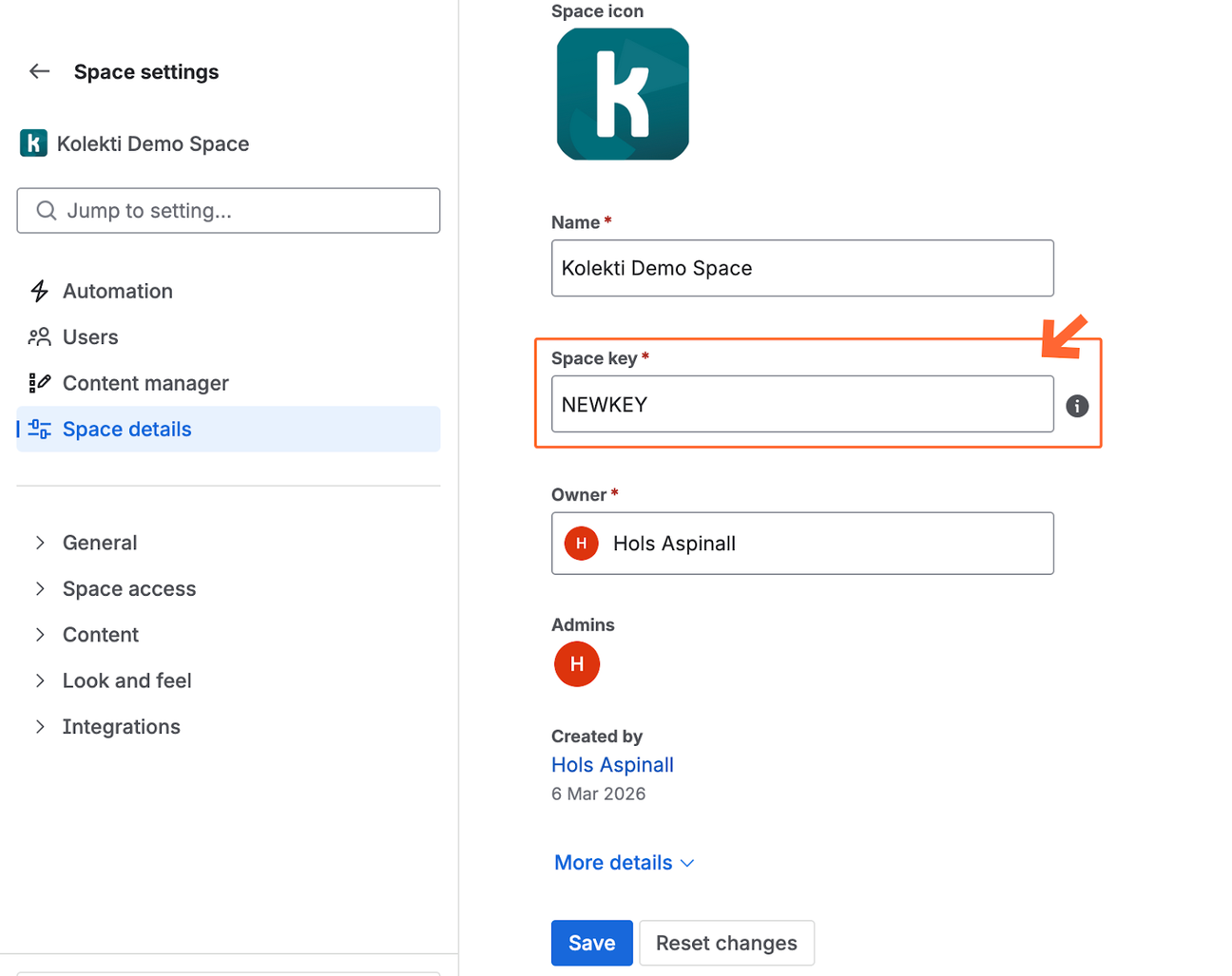
Change a space key
Bulk manage space content
Learn how to create, archive, and delete a Confluence space, and how to update your space key, in just a few clicks.
Confluence spaces are the first step to creating well-organised content that everyone on your team can navigate with ease.
If you're a new Confluence user, one of your first tasks is learning how to set up a new space.
Ready to take back control of your work? Discover why you should organise it into spaces, and then learn how to move Confluence pages to your new space to keep things perfectly neat.
TL;DR Creating and managing Confluence spaces
Short on time? Here is a quick summary of everything you need to know about overseeing Confluence spaces:
- Dedicated hubs: Confluence spaces act as a central home to organise files and pages for specific teams, projects, or topics.
- Easy setup: You can create a new space in seconds by simply clicking Spaces > Create a space in the top navigation bar.
- Tailored purposes: Choose between Collaboration, Knowledge Base, or Custom purposes to automatically toggle the features you need most.
- Update your keys: Confluence admins can easily change an existing space key by heading to Space settings > Space details.
- Manage at scale: Premium and Enterprise users can use Confluence's built-in content manager. For cross-space management, bulk content creation, and higher limits, use Space Manager (included with Mosaic for Confluence's Advanced Edition).
What is a Confluence space?
Think of a Confluence 'space' as a dedicated home for pages related to a specific department, project, or topic. Instead of an endless sea of documents, spaces help you organise your files and content logically, empowering users to find exactly what they need, right when they need it.
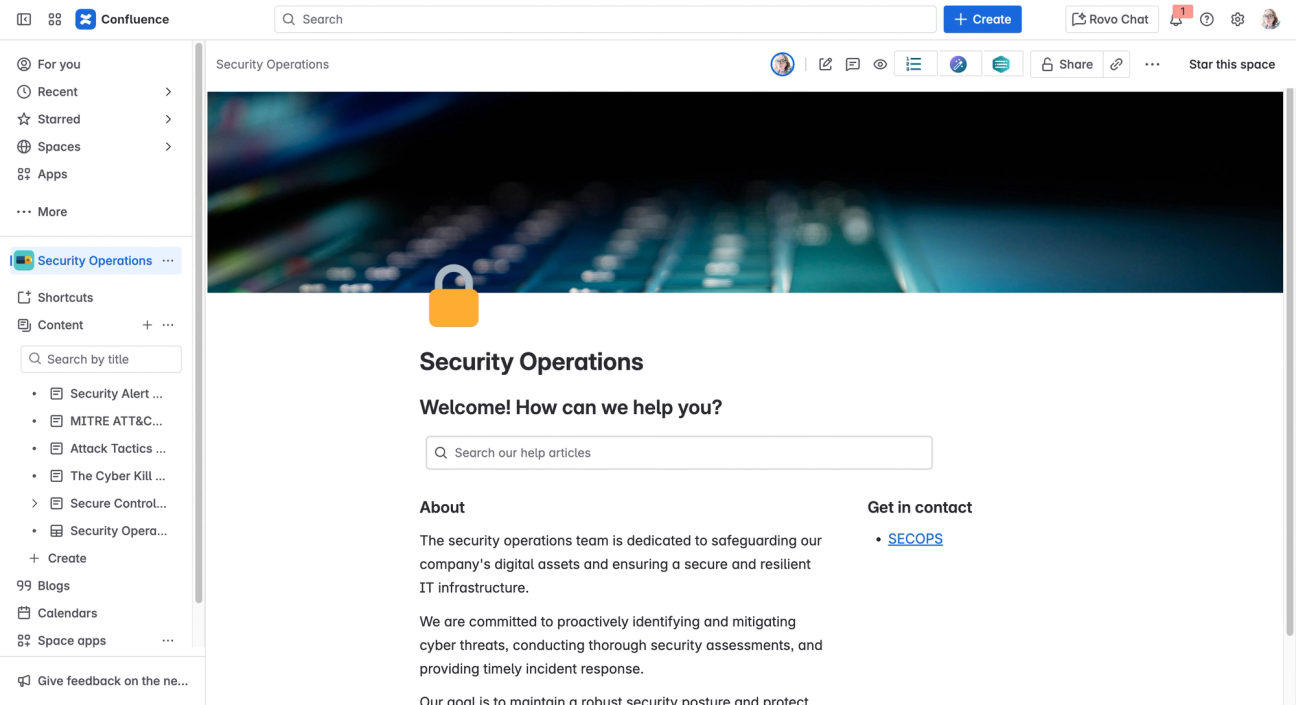
A Confluence space acts as a hub for a specific team, project, or topic
What are the different elements of a Confluence space?
Every Confluence space features a space overview, which acts as a welcoming landing page to give visitors immediate context.
Beyond the overview, spaces hold your actual content. This includes your Confluence pages, whiteboards, databases, live docs, folders, and smart links. These are all neatly structured in the content tree in the left-hand sidebar.
Other elements in a Confluence space include:
Other elements in a Confluence space include:
- Confluence space shortcuts: Quick links to other relevant pages and external websites.
- Space admins: Users who have administrative permissions for that specific space.
- Confluence team calendars: Shared calendars that let you track team events and deadlines (available on Premium tier and above).
- Confluence analytics: User insights that help you track how your content is performing (available on Premium tier and above).
How to create a space in Confluence Cloud
Whether you use Confluence Cloud or Data Center (which reaches end-of-life in March 2029), creating a space takes just a few clicks. Here is the simple process for Confluence Cloud:
- Click on 'Spaces' in the sidebar. In the dropdown, select 'Create a space'.
- Fill in the details for your new space, including its name, icon, and purpose. You can also change the permissions and space key (both optional).
- Press 'Next'. Toggle the features you want available in your space, then select 'Create space'.
Follow along with our interactive guide below 👇
How to delete or archive a Confluence space
Sometimes, a project ends, or a space simply isn’t needed anymore. Here’s how to tidy it up:
- Go to your chosen space.
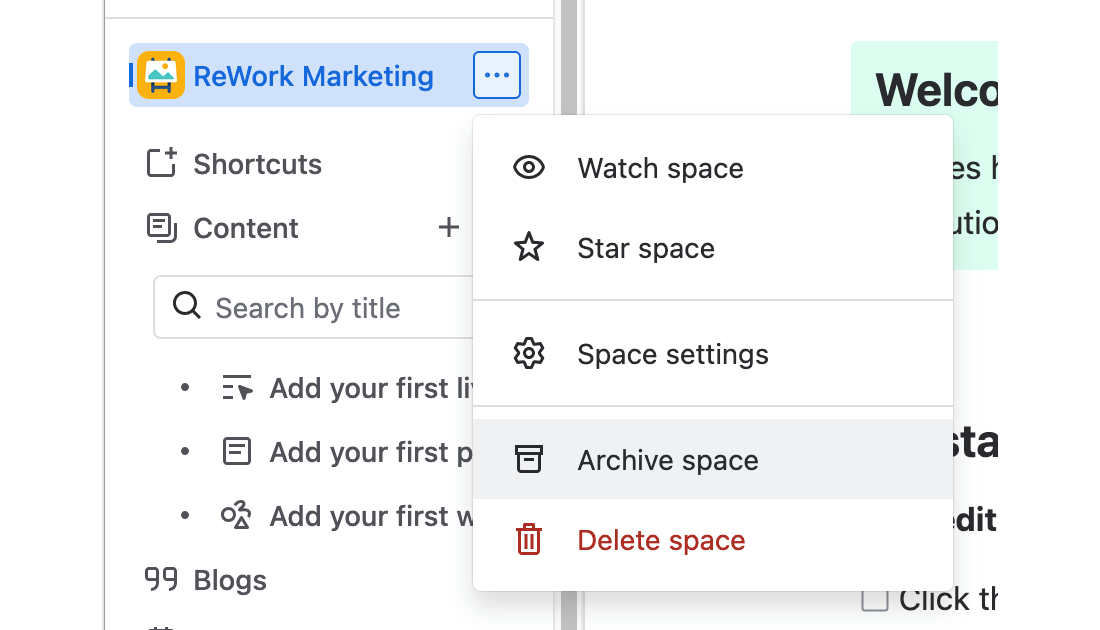
- In the sidebar, click the three dots to the right of your space name.
- Choose 'Archive space' or 'Delete space' from the dropdown:
- Depending on your choice, either 'Archive space' or 'Send this space to trash' on the following screen.
What are Confluence space templates?
In the past, space templates offered pre-made layouts for specific use cases (e.g. Human Resources, Documentation).
In Confluence Cloud, these have been replaced by Space purposes, which intelligently pre-populate your space with the right features for your goal. When creating a space, you can choose from Collaboration, Knowledge Base or Custom.
Spaces have different features you can toggle during setup, including blogs, live docs, calendars, whiteboards, smart links, databases and folders. By default:
- Knowledge base: Comes with whiteboards, smart links, databases and folders toggled on.
- Collaboration: Comes with everything apart from blogs toggled on.
- Custom: Has every single feature toggled on, ready for you to tailor to your needs.
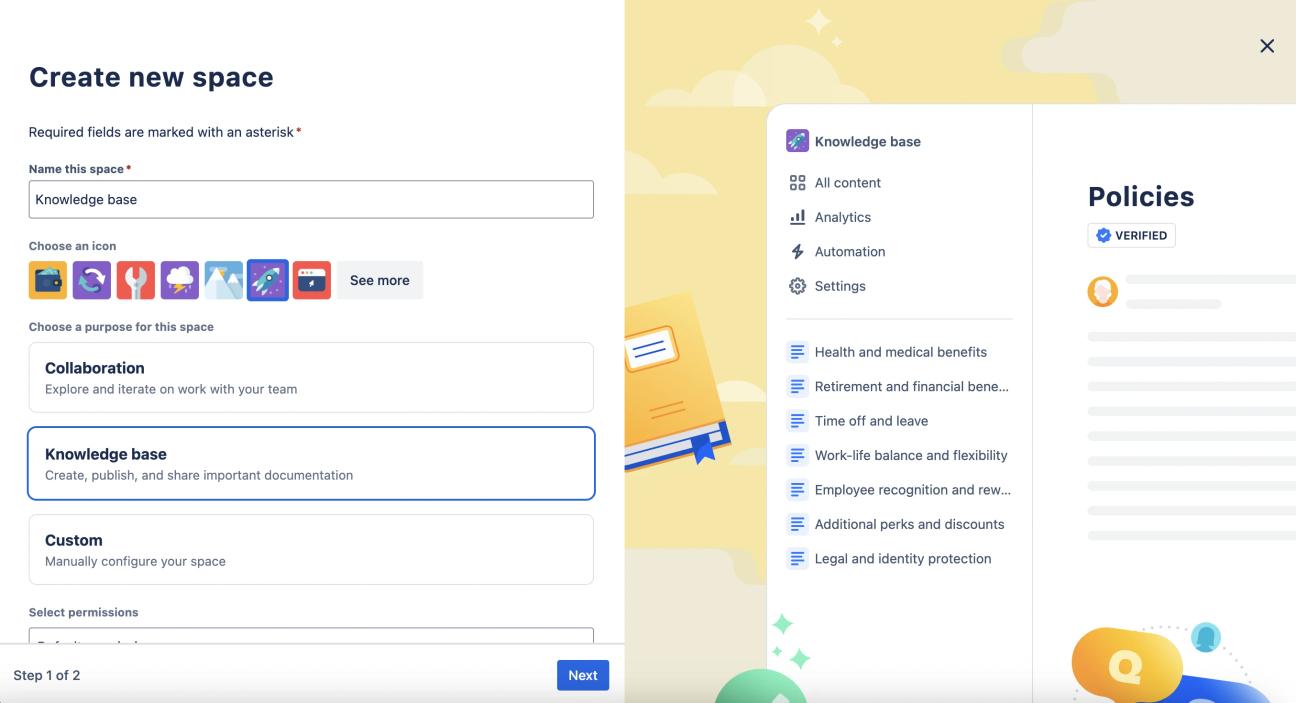
Choose 'Collaboration', 'Knowledge base', or 'Custom' as the basis of your Confluence space
What is a Confluence space key?
A Confluence space key is simply a unique, short code that identifies a specific space within your Confluence instance.
You’ll spot that your space key is used in the URL after /spaces/ (e.g., test.atlassian.net/wiki/spaces/ABC). Confluence automatically generates this key based on your space name, so you only need to change it if you want something highly specific.
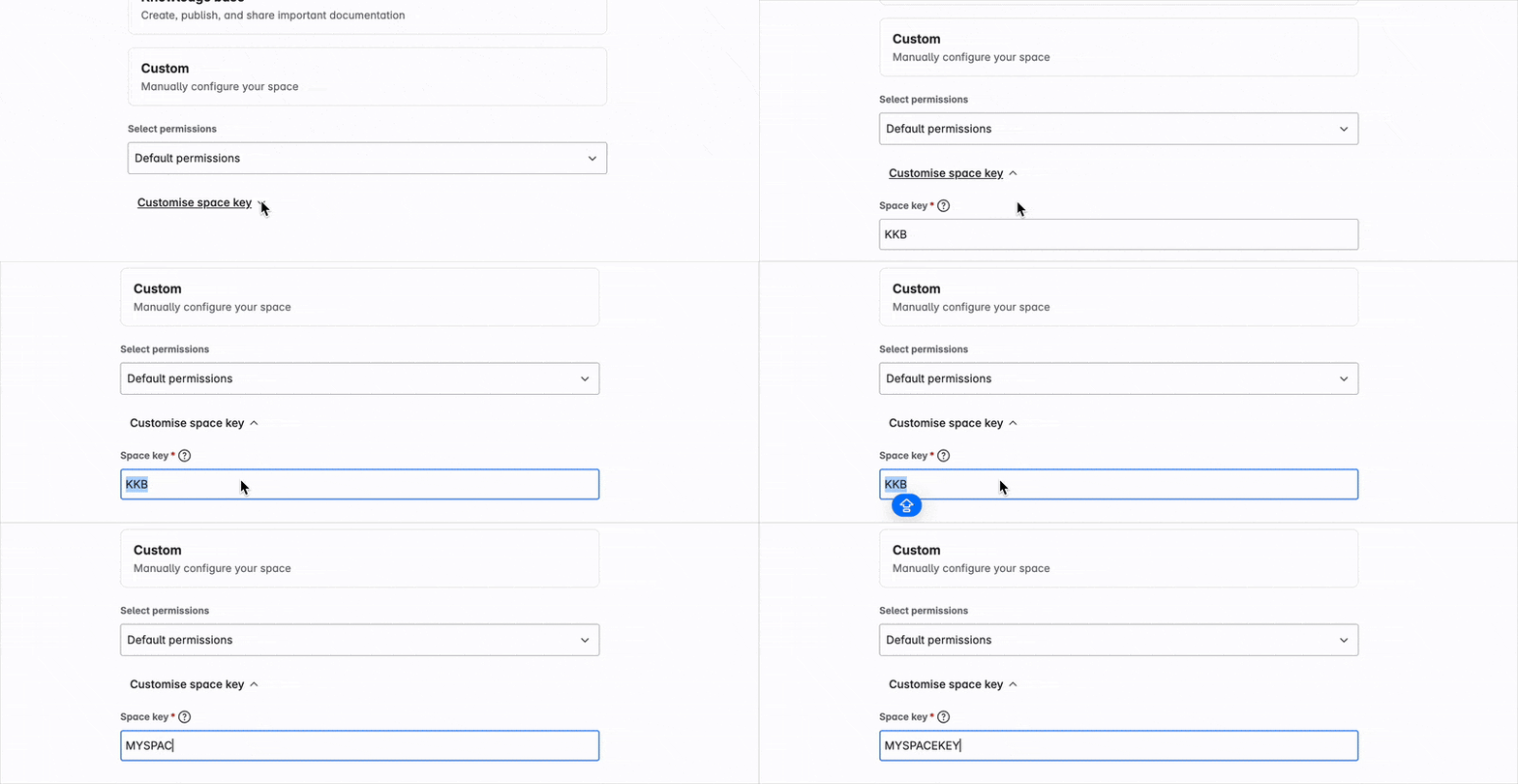
If you have a specific key in mind when creating your space, you can set it during the creation process. Here's how:
- On page one of the space creation screen, scroll to the bottom.
- Click the arrow beside 'Customise space key'.
- Type in your chosen key.
Can you change the space key of an existing Confluence space?
Yes, but there's a catch: you must be a Confluence admin to change a space key. Standard space admin permissions will not be enough here.
If you have the right permissions, here's how to change it:
- Click the three dots beside your space name in the sidebar.
- Select space settings from the dropdown menu.
- Click Space details in the left-hand sidebar.
- Type your new space key and click Save at the bottom of the page.
Do I need to create a personal space?
Every user automatically receives their own personal space as soon as they join a Confluence site, so you won't need to make one from scratch.
To find yours, simply click your account icon in the top-right, and select 'Personal Space' from the dropdown menu.
Why should I create different Confluence spaces?
Creating dedicated spaces is the secret to a clutter-free Confluence. Here is why it's worth doing:
- To separate work: Creating distinct spaces for unrelated projects helps teams maintain focus and drastically improves organisation.
- To maintain security: Mixing a customer-facing knowledge base with internal documentation is a recipe for confusion. Separate spaces with different permissions can fix this issue.
- To improve file management: Dedicated spaces help users intuitively store and search for information in the relevant place.
How to bulk manage content in a Confluence space
If you're a Premium or Enterprise customer, you can access Confluence's native content manager by clicking the three dots beside your space name and selecting Content manager.
This allows you to view all content in your space and perform bulk actions, such as archiving, deleting, changing owners, and updating page status.
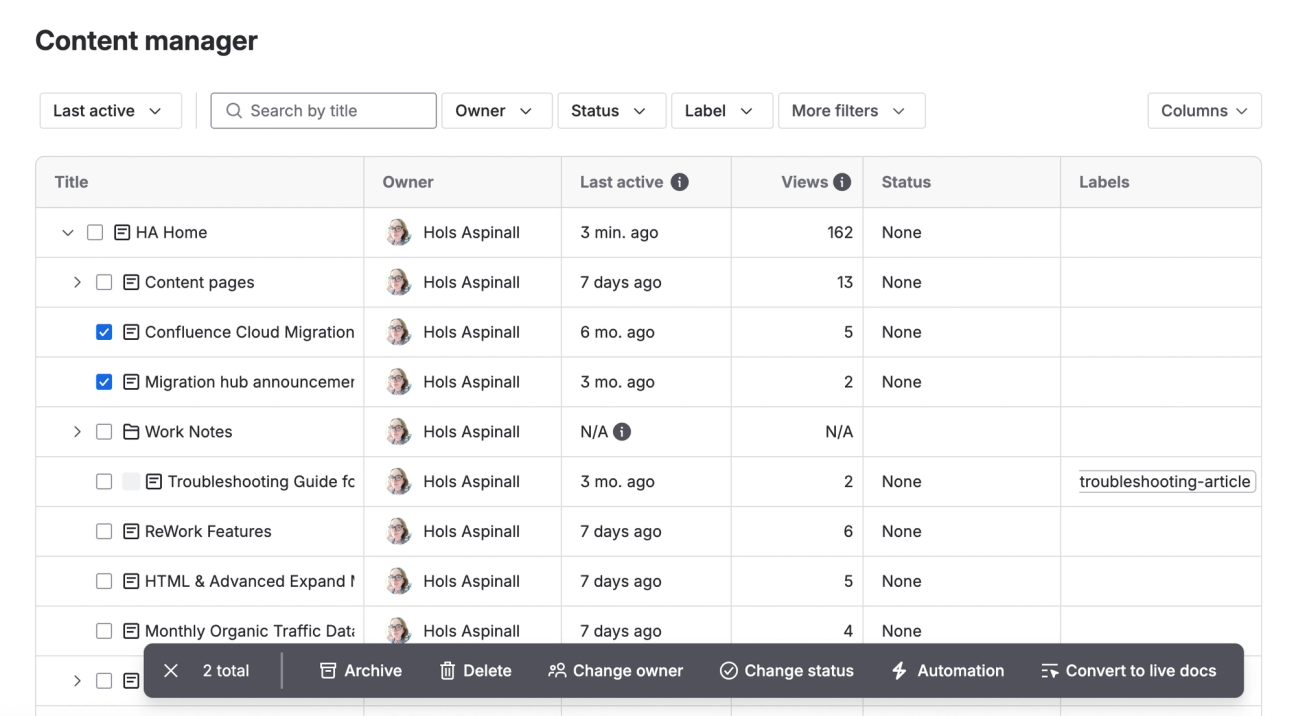
Content manager limitations:
- You need to be a Premium or Enterprise customer
- You can only manage the space you’re currently in
- You can only update up to 100 pieces of content at once
Not a Premium or Enterprise customer, or looking to manage multiple spaces at once?
Space Manager, included in Mosaic for Confluence's Advanced Edition, lets you view, manage and even create content across multiple spaces simultaneously. Plus, it handles up to 200 pieces of content at once, saving your team even more time.
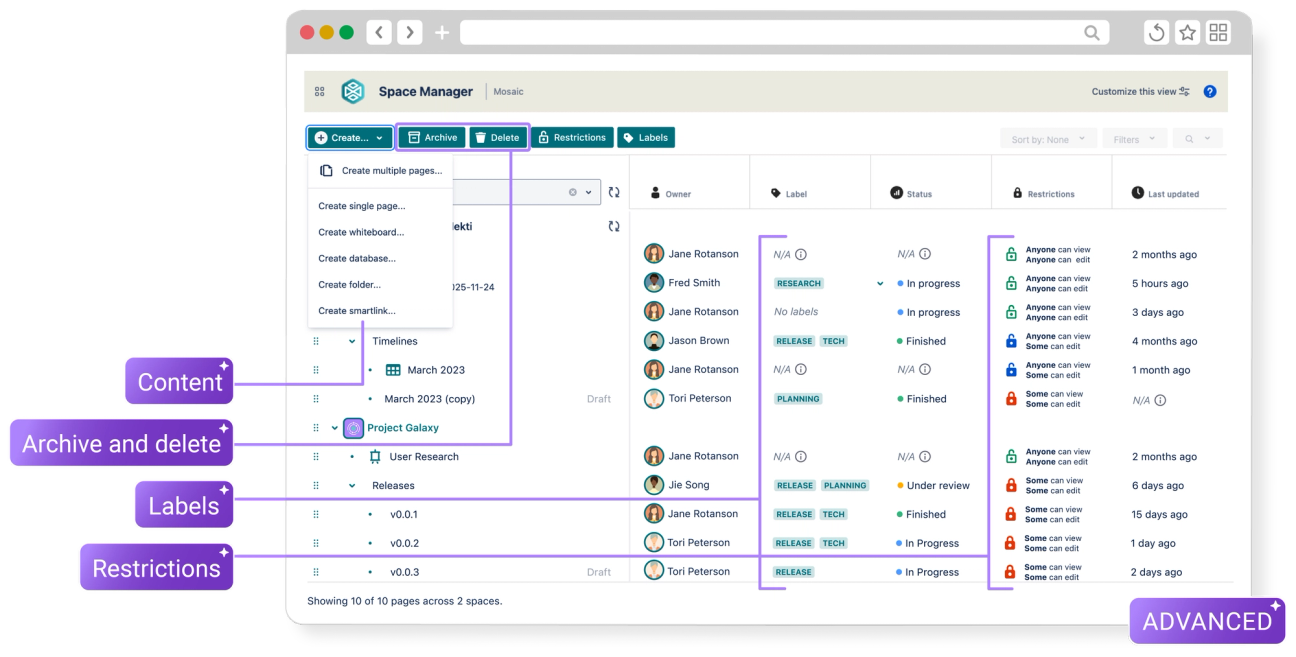
Where Space Manager outshines Confluence's content manager:
- Manage up to 200 pieces of content simultaneously.
- No need for a Premium or Enterprise licence.
- Scale content creation – bulk create pages and apply templates in one go.
- Manage across spaces (not just the one you're currently in).
Don't forget to organise your pages
Congratulations! You've created a Confluence space, making navigation significantly easier for your team. Now it's time to turn to your pages.
With Mosaic Advanced Edition, you not only get access to Space Manager but also a range of macros, full-page templates, and more. It helps you build engaging, accessible pages that users actually read, and drive meaningful outcomes faster.

Ready to boost page navigation?
Mosaic helps you structure your pages, so users don't get lost in your content. Get your 30-day free trial today.
Related Content
Read more
Written by
Related Content
Read more