
How to build dynamic and interactive content in Confluence
Share on socials
How to build dynamic and interactive content in Confluence
Creating dynamic, structured content:
Creating dynamic, structured content:
1. Use native Confluence features
- Navigation and discovery
- Content reuse and aggregation
- Structured reading & progressive disclosure
- Displaying visual content
2. Create custom HTML elements
- Interactive content panels
- Smart decision trees
- Branded elements on landing pages
- Quicker HTML creation
3. Design best practices
Want to build more engaging Confluence pages? Learn how with native Confluence features and Mosaic for Confluence's HTML macro.
Confluence Cloud is commonly used as a platform for creating and sharing information, but it can do much more. With the right combination of elements and apps, Confluence can turn into:
- A structured knowledge base
- A lightweight webpage
- A guided decision system
- And even a micro application to support internal processes (i.e. forms, content approval)
Let's explore what's possible in Confluence beyond static documentation, and how you can polish your content with both native and third-party macros.
📝 Good to know: While we refer to Confluence pages in this article, these features and macros will also work on Confluence live docs.
1. Making structured and dynamic content with native Confluence features
Navigation and discovery
Confluence includes several features to help your audience quickly grasp content and find exactly what they're looking for. These are particularly helpful for long pages and complicated spaces.
- Table of contents: Aid on-page navigation with a list of linked headings.
- Anchor link: Link to sections of your content not highlighted in a table of contents.
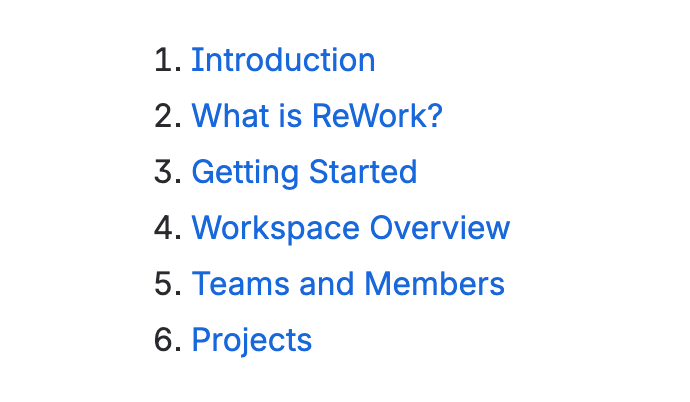
The 'Table of contents' macro
- Content tree: Display your content hierarchy on your page for quick space navigation.
- Live search: Search your Confluence site directly from your page, with live results as you type.
- Page tree search: Search content locally within a preset page tree.
- Confluence search list: Insert a list of content related to a specific search term.
Content reuse and aggregation
You can also reference content from other pages or provide a summarised information without duplicating content.
- Excerpt & Insert excerpt: Add an excerpt to your Confluence page that can be used on other Confluence pages.
- Content properties & Content properties report: Show summary information (such as Contributors and Due date) from one Confluence page on another page.
- Include content: Display a full Confluence page on your existing page.
- Recent updates: Display a list of pages that have been recently updated in your chosen Confluence spaces.
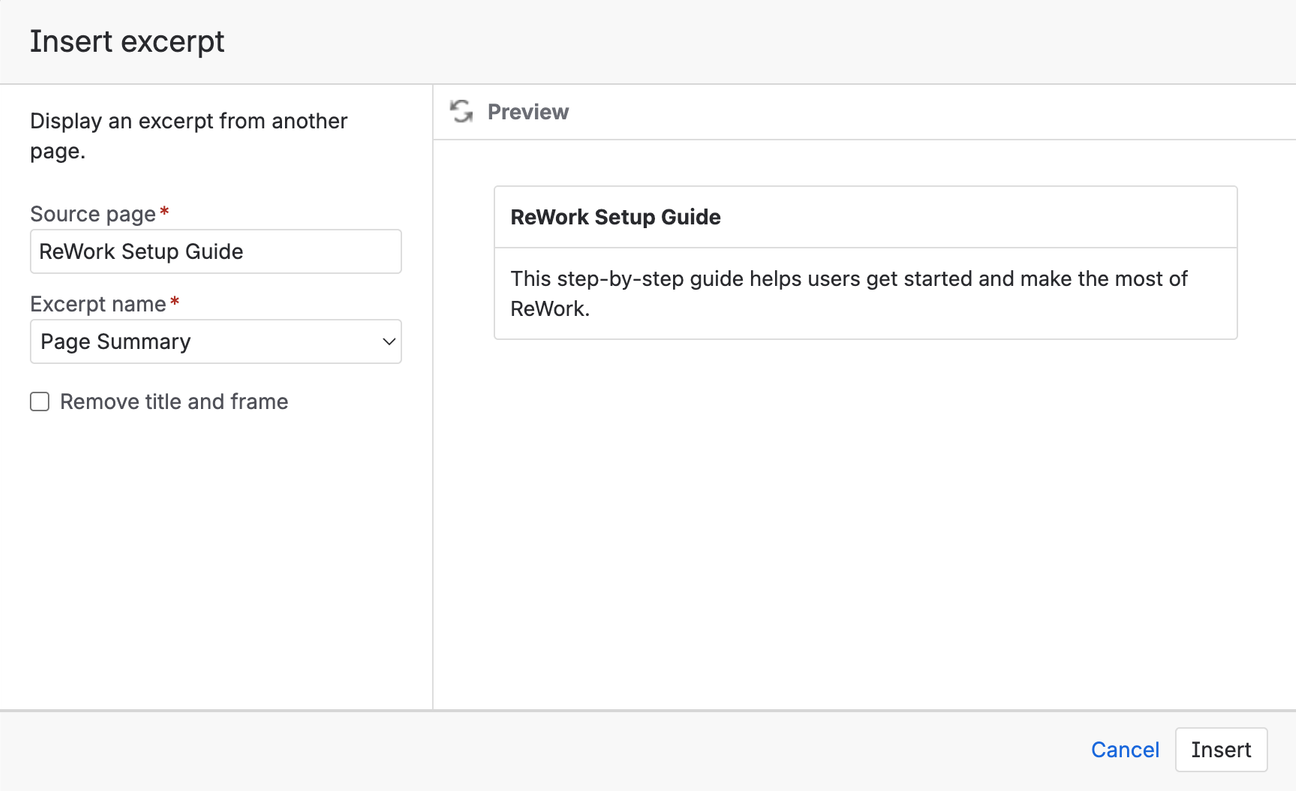
The 'Insert excerpt' macro
Structured reading and progressive disclosure
Long documentation can feel overwhelming. Use these macros to control how information is presented:
- Expand: Hide information neatly away, ready to be clicked when a user wants to engage with it.
- Panel: Highlight text and call out important information on your page. Choose from warning, info, note, and success presets or customise your own.
- Status: Make task statuses instantly obvious with brightly coloured lozenges.
- Task list: Break down projects into smaller, manageable tasks that can be checked off as you go.
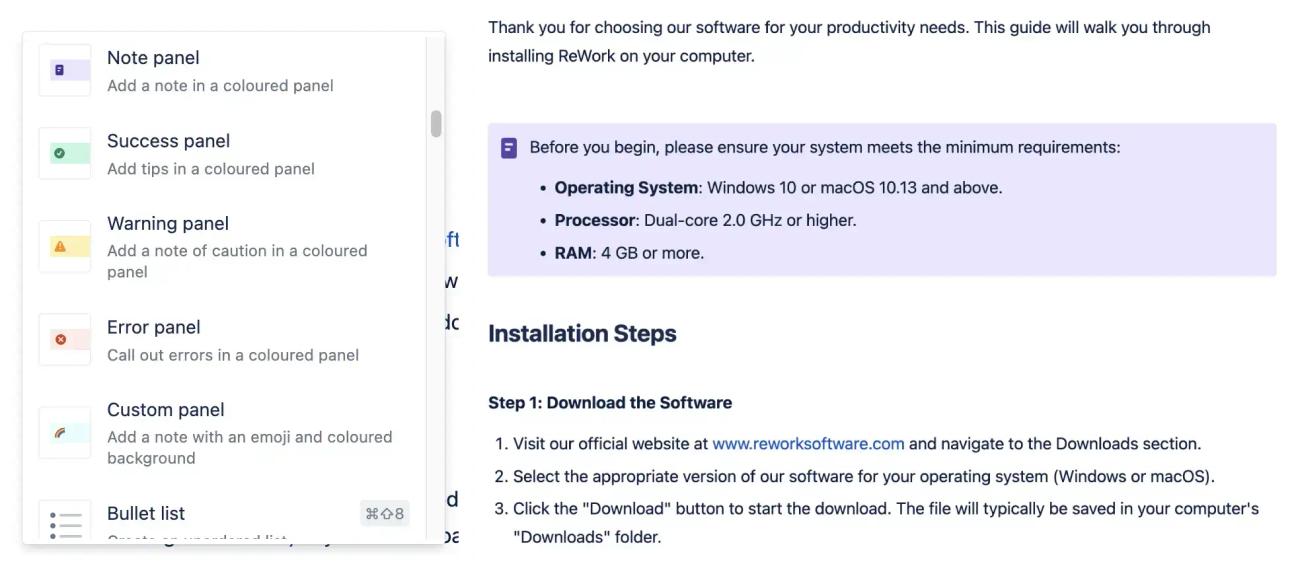
The 'Note panel' macro
Displaying visual content
Need to reference content from external sources? You have the following built-in options:
- Inline, Card, and Embed links: When adding a hyperlink to your page, Confluence can convert it to a smarter link that shows the page title (Inline), as a card, or as a full embedded page.
- PDF: Embed a PDF document into your Confluence page.
A Link (Card version)
Add custom styling and interactivity with Mosaic's HTML macro
While Confluence’s native macros are powerful for organising and presenting information, there are many use cases where teams need:
- Controlled layout and typography
- Branded visual systems
- Interactive UI components
- Conditional logic
- Lightweight tools inside a Confluence page
With secure HTML, CSS, and JavaScript injection, you can elevate the content experience of your Confluence page just the way you imagine it.
Here are some powerful, interactive ideas you can incorporate into your Confluence pages using the HTML macro included with Mosaic for Confluence.
Enjoy HTML and CSS with Mosaic Standard Edition or get added JavaScript support with Mosaic Advanced Edition.
Interactive content panels
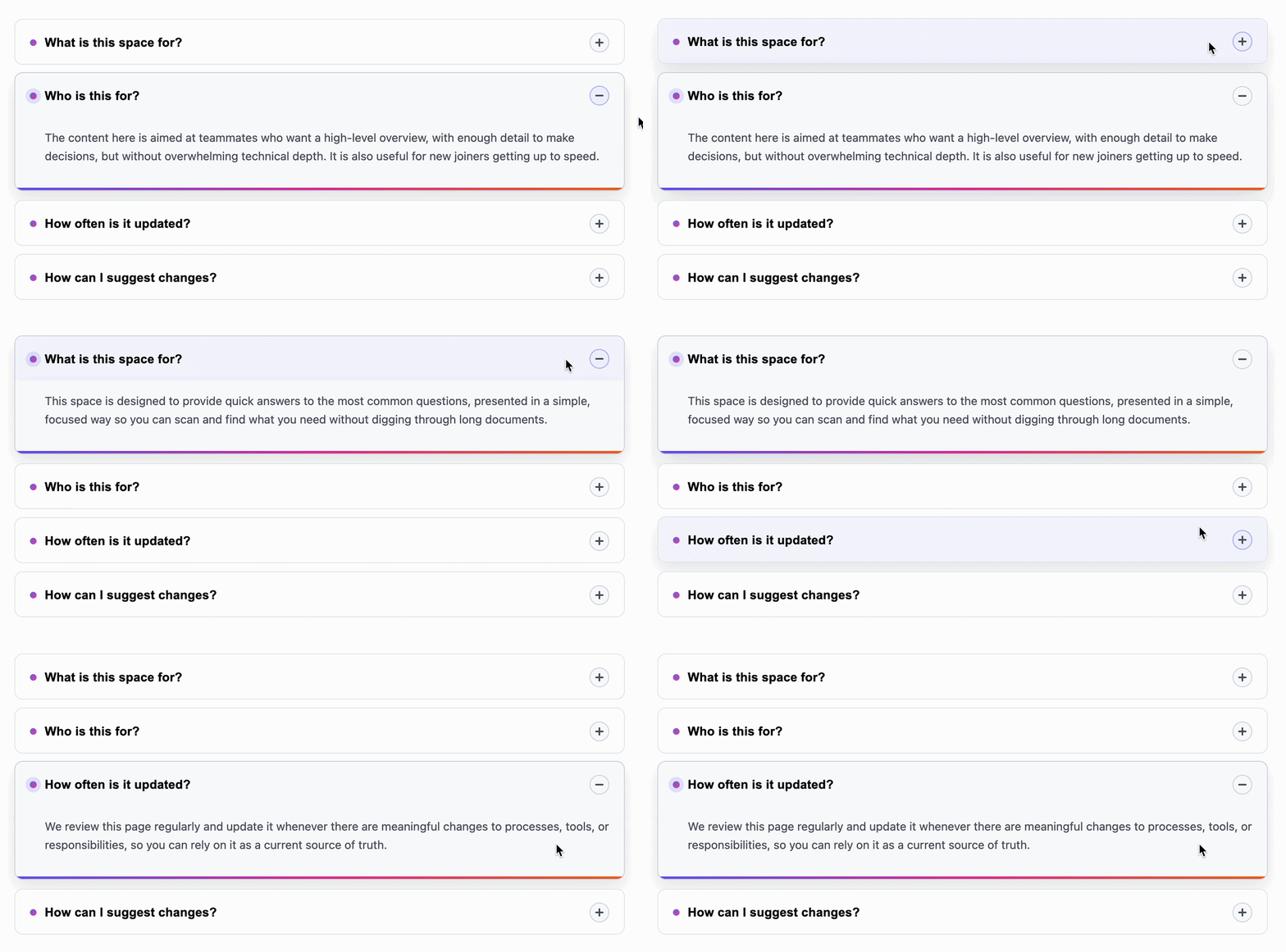
One downside of the Expand macro is its inability to close when another is opened, which can make pages long and content-heavy if users check out more than one collapsible section.
With some HTML and CSS, you can create a stylish, structured accordion tailored to your liking. Add in some JavaScript for the open/close animation – ensuring only one section can be open at a time – and you've got a handy space-saver with a similar function to tabs (but even more satisfying to click on).
Smart decision trees
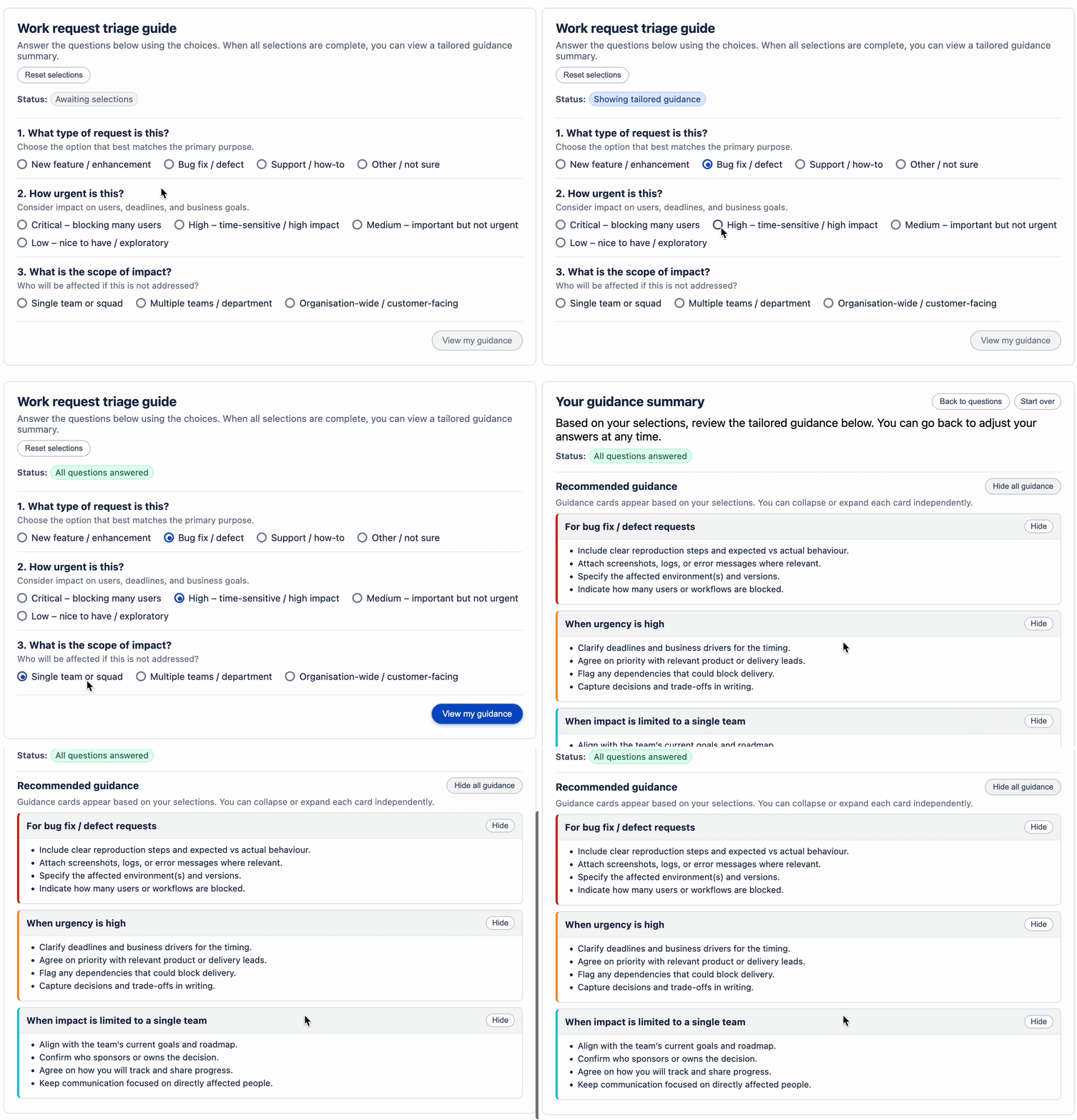
Looking to create tailored onboarding guides, incident reports, runbooks, and more? With the HTML macro, you can ensure users get the right answer every time without having to sift through content.
Simply assign your options with radio buttons in HTML, and let JavaScript do the heavy lifting, so your guide smartly filters recommendations or outcomes based on a user’s answers.
Branded elements on landing pages
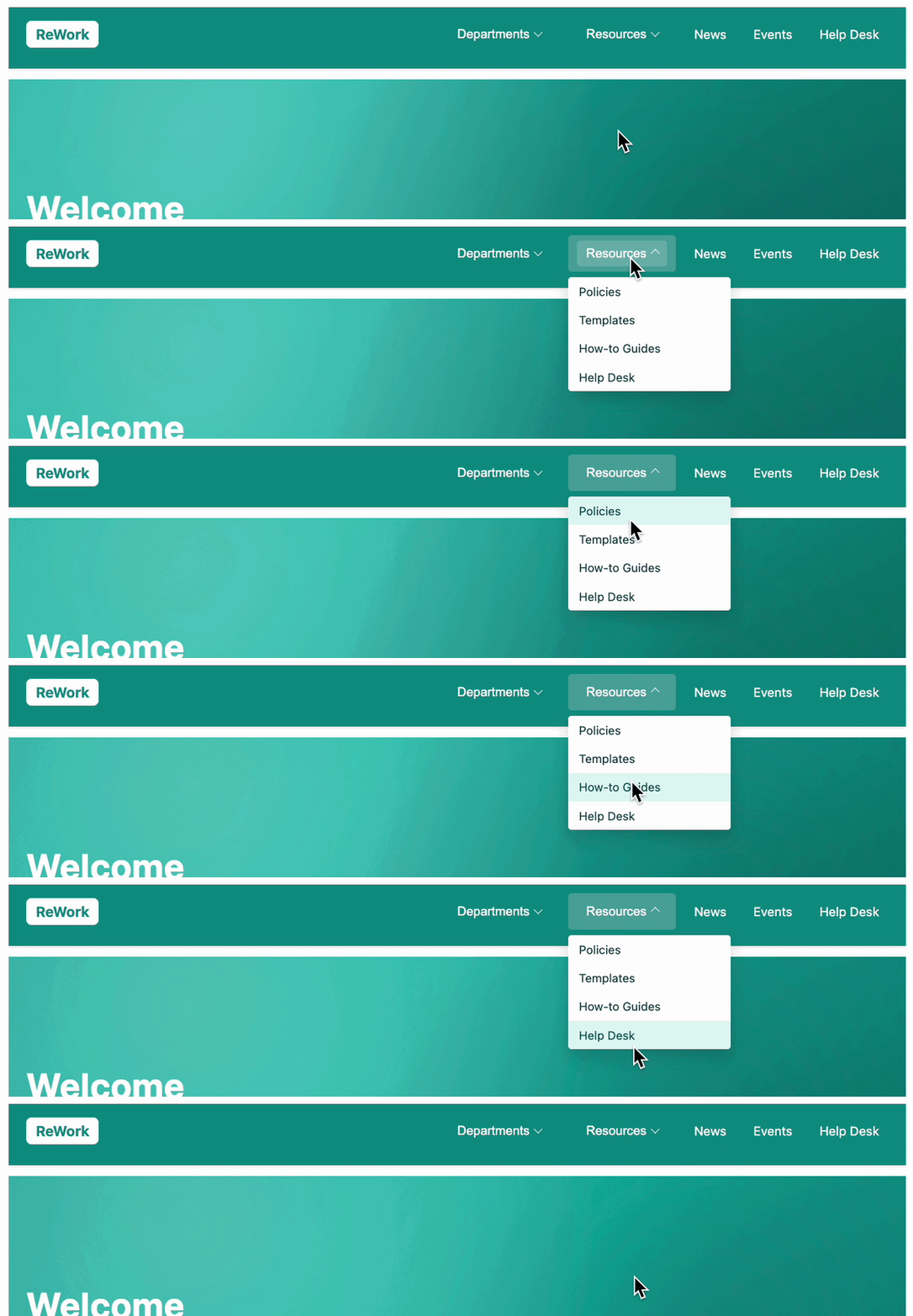
If Confluence's built-in visual styling isn't quite enough, you can rely on HTML and CSS to deliver perfect branding for your intranet, campaign page, knowledge base, and more.
For example, you could add a navbar with interactive dropdowns and linked subitems, helping keep on-page links clear and easily accessible. Create stylish navigation blocks which feel engaging, interactive, and professional.
Get inspired and save time with HTML
With Mosaic's HTML macro, the sky really is the limit with what you're able to build. And if you want to save yourself time or need some inspiration, browse the built-in library of code snippets.
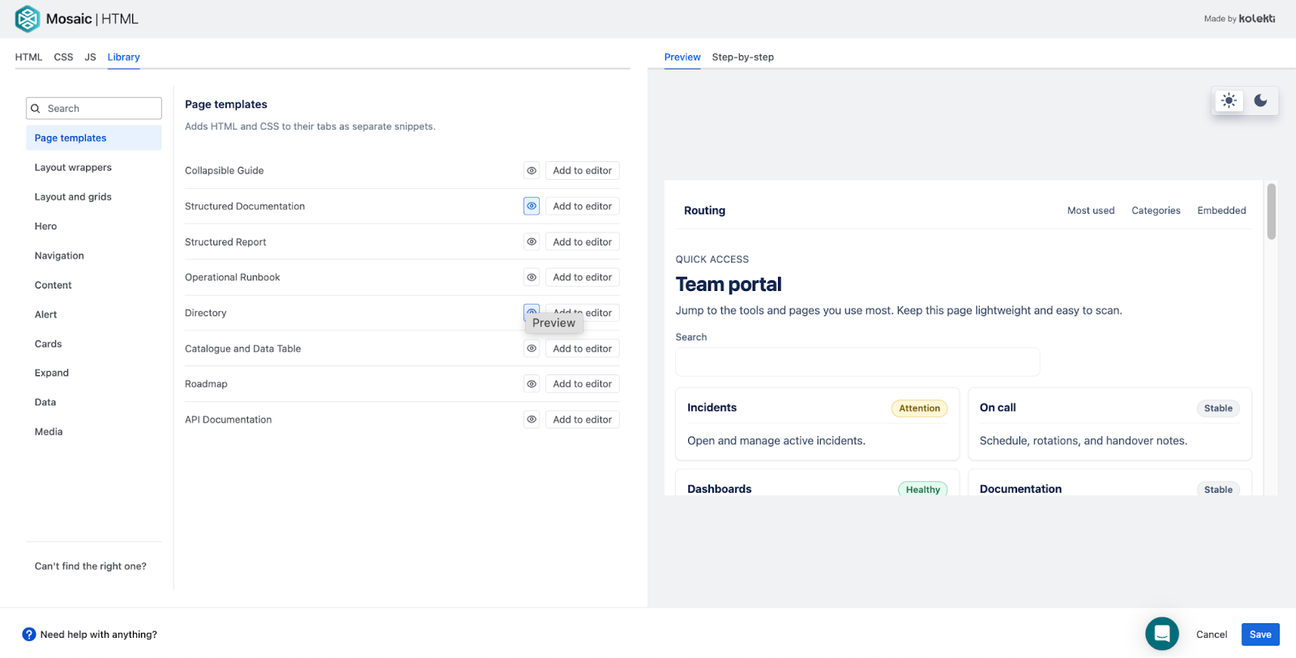
Choose from content blocks and hero sections to page layouts and full-page templates. Then just add your styling and any interactivity you want, and you're good to go.
Best practices for creating interactive content in Confluence
Having the ability to create pages however you want gives you a lot of power over your content – and with great power comes great responsibility. So before you dive in and create the next Frankenstein's monster, take a moment to read these best practices.
To maintain scalability and ensure your content clarity:
- Start with structure before adding styling (think sections, page layout, and content blocks). For example, you could add headings before the rest of your content to help visualise the structure.
- Define macro usage guidelines for your space. For example, encourage the use of templates with consistent branding, or specify appropriate macros for specific information (such as cards for user profiles).
- Avoid overloading pages with too many dynamic elements – less can be more, and too much animation will overwhelm readers.
- Document content patterns for consistency. To save time, build reusable templates that other users can access in just a few clicks.
- Test performance on long pages to ensure everything loads correctly (and quickly).
- If using the HTML macro, create a reusable CSS snippet rather than recreating styles on every page, assigning your brand colours, fonts, and more to key HTML classes. Treat your CSS as a design system rather than a one-off decoration. And don't forget to check it meets security and admin policies.
For more tips and best practices, read our guide on structuring Confluence pages.
Ready to build dynamic, custom pages in Confluence?
Get HTML & CSS as part of Mosaic Standard. Enjoy added JavaScript support with Mosaic Advanced.
Related Content
Read more


Written by

Senior Product Marketing Manager
As Senior Product Marketing Manager at Kolekti, Linh brings over 13 years of experience in product management and marketing, with over seven years dedicated to building and growing solutions within the Atlassian ecosystem. She is passionate about helping teams work efficiently using tools like Confluence and Jira.
Related Content
Read more