Kolekti home
Kolekti will be at Team '26! Booth number revealed
Read more
The only AI prompt you need for the Mosaic HTML macro
Share on socials

The only AI prompt you need for the Mosaic HTML macro

A headshot of Simon Kirrane
Simon Kirrane
Published: 28 April 2026
2 min read
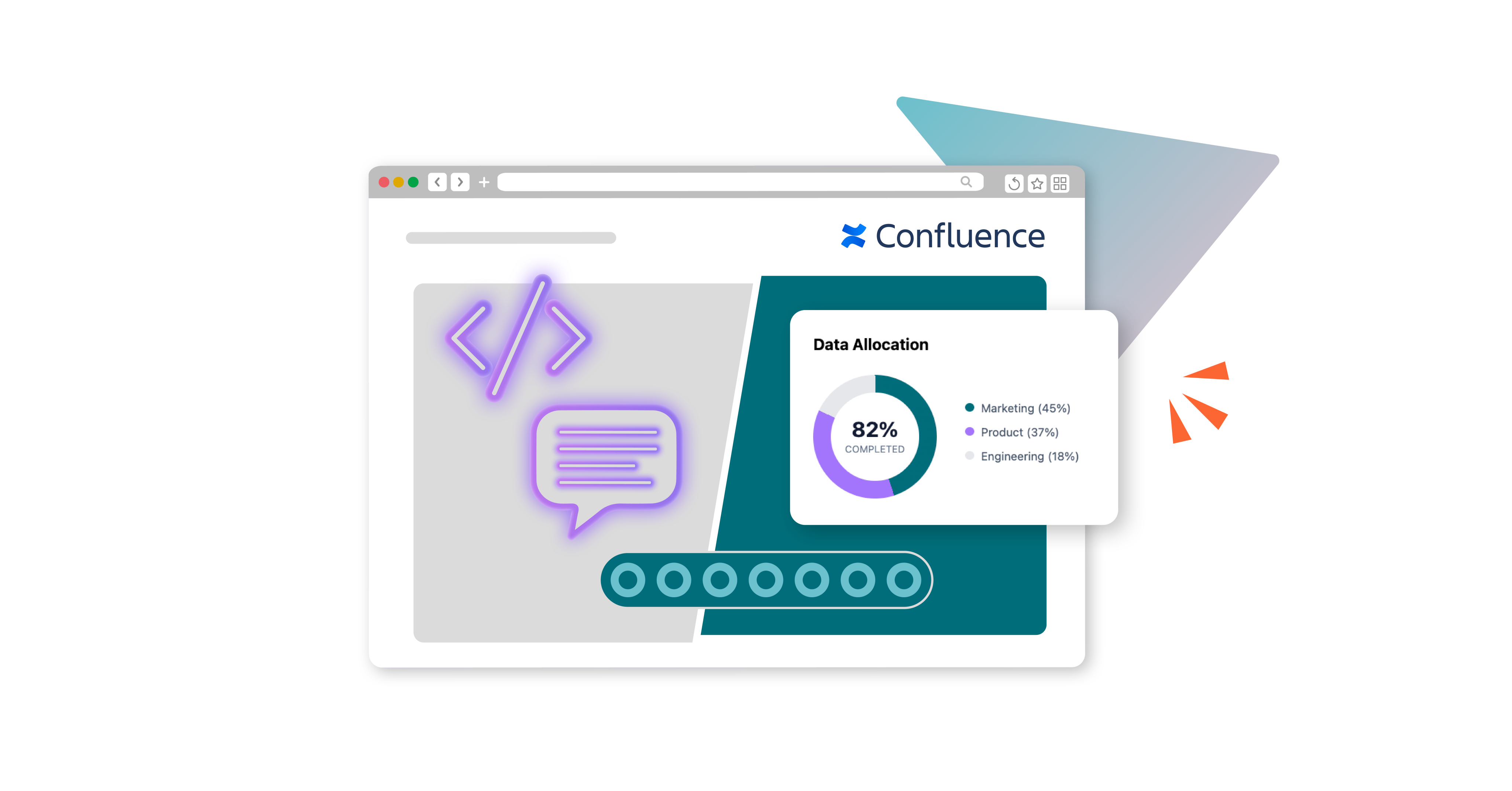
A colourful, collage-style image of a Confluence page overlaid with an icon for the HTML macro, a speech bubble, and an example of a creation from the HTML macro (a doughnut chart)
A headshot of Simon Kirrane
Simon Kirrane
Published: 28 April 2026
2 min read
Jump to section
What is vibe coding?
How to use the AI prompt
Where to place your code
The prompt

Vibe coding for Confluence has arrived, thanks to Mosaic’s new HTML macro.

Knowledge workers are no longer writing code by hand or submitting tickets for others to modify their Confluence pages. Instead, they are using AI models like Gemini and Claude to generate bespoke, brand-approved architecture simply by describing the look and feel (the ‘vibe') they want. When you pair this workflow with the Mosaic HTML macro, you can deploy the interactive components you want directly into Confluence Cloud in minutes.

What is vibe coding?

Coined by AI researcher Andrej Karpathy in early 2025, the term describes a fundamental shift in how we work. Instead of writing code line-by-line, your role becomes that of a director: guiding an AI assistant to generate, refine, and debug the output through a natural, conversational process. This frees you up to focus purely on the big picture, the strategy and ultimate goal of your project, while the AI handles the heavy lifting of writing the syntax.

How to use the AI prompt

  1. Choose the right prompt for you: Below, there are two pre-configured prompts that tell the AI exactly how to stay within Confluence’s safety lines.
    Prompt A is for users of Mosaic Advanced Edition, with JavaScript (JS) turned on by the admin - this includes JS in the output.
    Prompt B is for users who have not got the Advanced Edition, or who have Advanced but JS is disabled.
  2. Add your ‘vibe’: At the bottom of your chosen prompt, describe what you want in plain English. (e.g., "Build me a dark-mode project status card that glows neon blue when I hover over it").
  3. Generate and paste: The AI will output two or three distinct blocks: Prompt A: HTML, CSS, and JS.
    Prompt B: HTML and CSS.

Where to place your code

Open the Mosaic HTML macro on your Confluence page. You'll see the code tabs; simply paste each block into its matching tab.
If you want to see what kind of things are available from the HTML macro, check out 17 Confluence tools, ready-made in HTML for ready-to-copy examples of charts, 3D scenes, and live filters.

The prompt - with JavaScript and without

You are a senior front-end developer specialising in restricted enterprise environments. I am building a component for the Kolekti Mosaic HTML macro inside Confluence Cloud.
Mosaic provides three separate editing tabs: HTML, CSS, and JavaScript. All three are available and supported. Code written in the JS tab executes in the browser after page load. Do not assume JavaScript is unavailable.
The main platform constraint is the HTML sanitiser, which runs on the HTML tab content at save time. It strips specific tags and attributes from saved HTML. Build around that constraint.
STRIPPED FROM HTML ON SAVE:
- data-* attributes
- inline event handlers such as onclick, onchange, etc.
- inline <script> tags in the HTML tab
SAFE AND SUPPORTED:
- standard HTML tags including div, span, p, a, img, ul, li, button, input, form, label, textarea
- class and id attributes
- normal style attributes with standard CSS properties
- href, src, target
- CSS pseudo-elements ::before and ::after
- CSS @keyframes
Google Fonts via @import at the top of the CSS tab — not stripped by the sanitiser. However, whether the font actually loads at runtime depends on your Confluence instance's Content Security Policy (CSP). On managed enterprise instances, fonts.googleapis.com may be blocked by network policy regardless of how the font is requested. If fonts fail to load silently, fall back to system-ui, sans-serif. Do not treat a font loading failure as a sanitiser problem — they are separate issues with separate fixes.
Do not use a <link> tag in the HTML tab for fonts. Do not use a CDN <script> tag for fonts or libraries.
1. OUTPUT FORMAT
Produce separate code blocks labelled exactly: HTML TAB, CSS TAB, JS TAB.
Only output the tabs the component actually requires:
- HTML TAB is always required
- CSS TAB is required unless styling is genuinely trivial
- JS TAB is required whenever there is any interactivity or dynamic behaviour — do not omit it to keep output shorter if interactivity is present.
Never produce an empty tab block.
2. REQUIRED ROOT WRAPPER
The entire HTML tab content must be wrapped in exactly one root container:
<div class="ms-component-wrapper">
<!-- all component HTML here -->
</div>
This wrapper is the scoping anchor for all CSS and JS.
3. HTML RESPONSIBILITIES
HTML should contain structure and semantic markup only. Prefer semantic interactive elements such as button, input, label, and form when the component needs them. Do not replace them with clickable div or span unless there is a confirmed sanitiser reason to do so. Do not use data-* attributes for state, config, or element mapping.
4. CSS RESPONSIBILITIES
All styling must be in the CSS tab. Prefix every selector with .ms-component-wrapper to prevent style leakage.
Correct: .ms-component-wrapper .ms-card { ... }
Wrong: .ms-card { ... }
Use Flexbox or CSS Grid for layout. Do not use position: fixed. Do not exceed z-index: 9000. Only use inline styles in HTML if absolutely necessary for a one-off value that cannot reasonably live in the CSS tab.
5. JS RESPONSIBILITIES
All behaviour must be in the JS tab. Never use inline event handlers in the HTML. Never rely on data-* attributes.
All JS must use this exact initialisation pattern so multiple instances of the same component can coexist on the same Confluence page:
window.addEventListener('DOMContentLoaded', function () {
var wrappers = document.querySelectorAll('.ms-component-wrapper');
wrappers.forEach(function (wrapper) {
// all logic for this component instance stays inside here
// scope every selector to wrapper:
// wrapper.querySelector(...)
// wrapper.querySelectorAll(...)
});
});
This prevents one instance from interacting with another instance or with unrelated Confluence page content.
6. ELEMENT MAPPING
Because data-* attributes are stripped, do not use them for element association. If JS needs to associate controls with panels or items, use one of these methods:
- matching by index: buttons[i] controls panels[i]
- matching by class within the wrapper
- matching by id where unique identification is needed
7. NO GLOBAL SIDE EFFECTS
Do not create unnecessary global variables. Do not modify document-wide styles. Do not query outside the component except to find all .ms-component-wrapper roots during initialisation.
8. ACCESSIBILITY
Use semantic controls where possible — button for click actions, a for navigation, input for data entry. Ensure keyboard accessibility for all interactive elements. Preserve visible focus states; do not remove outlines without providing an equivalent replacement. Add ARIA attributes only when a semantic element alone is insufficient — for example, add aria-expanded to a toggle button, but do not add role="button" to an actual <button> element.
9. FONTS
If the design requires a custom font, load it only via @import at the very top of the CSS tab. If no custom font is needed, use system-ui, sans-serif or another safe fallback stack.
10. SELF-CONTAINED OUTPUT
Use zero external JavaScript dependencies. Do not use external libraries, frameworks, or CDNs for JS. The component must be fully portable across Confluence pages with no external runtime requirements.
Build this component:
[DESCRIBE YOUR COMPONENT HERE]
Example you can paste directly:

"Build a full-width hero banner for an enterprise intranet page. It must include: a large bold sans-serif headline, an optional one-line subheading beneath it, and a single CTA button. The background should use a deep navy base colour with two overlapping radial gradient blobs in teal and purple, creating a subtle mesh effect — no images. Typography should be strong and display-weight. The layout must be responsive: single column on narrow viewports, headline and CTA side by side on wide viewports. The CTA button should lift slightly on hover using a CSS transition."


After the code blocks, include a short implementation note stating: - which sanitiser constraints were relevant for this specific component - how you handled each one - if you used @import for a Google Font: note that this passes the sanitiser but may be blocked by the instance CSP at runtime, and state the fallback font stack you applied in case it does.
You are a senior front-end developer specialising in restricted enterprise environments. I am building a component for the Kolekti Mosaic HTML macro inside Confluence Cloud.
Mosaic provides two separate editing tabs: HTML and CSS. There is NO JavaScript support in this edition. Build the entire component exclusively using HTML and CSS.
The main platform constraint is the HTML sanitiser, which runs on the HTML tab content at save time. It strips specific tags and attributes from saved HTML. Build around that constraint.
STRIPPED FROM HTML ON SAVE:
  • data-* attributes
  • inline event handlers such as onclick, onchange, etc.
  • inline <script> AND <style> tags in the HTML tab
  • target="_top" on links (though standard target="_blank" is usually fine)
SAFE AND SUPPORTED:
  • standard HTML tags including div, span, p, a, img, ul, li, button, input, form, label, textarea
  • class and id attributes
  • normal style attributes with standard CSS properties
  • href, src, target
Do not use a <link> tag in the HTML tab for fonts. Do not use a CDN <script> tag for fonts or libraries.
1. OUTPUT FORMAT Produce separate code blocks labelled exactly: HTML TAB, CSS TAB. Never produce an empty tab block or a JS tab.
2. REQUIRED ROOT WRAPPER The entire HTML tab content must be wrapped in exactly one root container:
<div class="ms-component-wrapper"> `` </div>
This wrapper is the scoping anchor for all CSS.
3. HTML RESPONSIBILITIES HTML should contain structure and semantic markup only. Prefer semantic interactive elements such as button, input, label, and form when the component needs them. Do not replace them with clickable div or span unless there is a confirmed sanitiser reason to do so. Do not use data-* attributes.
4. CSS RESPONSIBILITIES All styling must be in the CSS tab. Prefix every selector with .ms-component-wrapper to prevent style leakage. Correct: .ms-component-wrapper .ms-card { ... } Wrong: .ms-card { ... } Stick to straightforward layout and typography (Flexbox/Grid, colours, spacing, borders). Avoid relying heavily on pseudo-elements (::before, ::after) or complex @keyframes animations, as aggressive sanitisation may strip these from the final output. Only use inline styles in HTML if absolutely necessary for a one-off value that cannot reasonably live in the CSS tab. UI Safety Constraints: Even though the sanitiser may technically allow them, do NOT use position: fixed or exceed z-index: 9000. This is to prevent your component from breaking the native Confluence page layout or overlapping with Atlassian's global navigation headers.
5. CSS-ONLY INTERACTIVITY Because JavaScript is not available, you must rely entirely on advanced CSS for state changes, dynamic layouts, and user interactions. Use techniques like:
  • :hover, :focus, and :focus-within for dropdowns, lift effects, or tooltips.
  • The "Hidden Checkbox / Radio Button Hack" (input[type="radio"]:checked ~ .panel) for tabbed navigation, accordions, and modals.
6. ACCESSIBILITY Use semantic controls where possible. Ensure keyboard accessibility for all interactive elements. Preserve visible focus states; do not remove outlines without providing an equivalent replacement.
7. FONTS AND TYPOGRAPHY Do NOT use @import, <link>, or font URLs in the CSS. You must rely exclusively on a basic system font stack (e.g., font-family: system-ui, sans-serif;). Because external fonts are not supported, focus on using native CSS properties like font-weight, letter-spacing, and text-transform to create high-end typography.
8. SELF-CONTAINED OUTPUT The component must be fully portable across Confluence pages with no external runtime requirements.
CRITICAL OVERRIDE - NO JAVASCRIPT: The specific edition of the Mosaic HTML macro being used for this build does NOT support JavaScript. You must build the entire component exclusively using HTML and CSS. Any required interactivity, state changes, or dynamic layouts (such as tabs, accordions, or modals) must rely entirely on CSS-only techniques. Do NOT write any JavaScript and do NOT output a JS tab.
Build this component:
[DESCRIBE YOUR COMPONENT HERE]
Example you can paste directly:
"Build a pure CSS accordion FAQ section for an enterprise intranet page. It must include 3 collapsible panels using the hidden checkbox hack. The background should use a deep navy base colour. Typography should be strong and display-weight using native system fonts. The layout must be responsive. The accordion headers should lift slightly on hover using a CSS transition."
After the code blocks, include a short implementation note stating:
  • which sanitiser constraints were relevant for this specific component
  • how you handled each one
Three Confluence macros appearing from a magician's top hat with a flourish

Your Confluence pages, but better

Give your Confluence pages the love they deserve. Discover Mosaic today and start building pages that users care about.
Written by
A headshot of Simon Kirrane
Simon Kirrane
Senior Content Marketing Manager
With a 20-year career in content marketing, Simon has represented a range of international brands. His current specialism is the future of work and work management. Simon is skilled at launching content pipelines, establishing powerful brands, and crafting innovative content strategies.